
Need a number just once?
Use the time-until-date calculator to check a date in your browser. A widget is useful when you want to keep the countdown visible, such as the days until a trip or a birthday. You can try the date online before setting anything up.
Save the date you want to track
- Open Important Dates and use the add-event button on the main list.
- Give the event a name and set its date and time. For an upcoming birthday, use the year of the next celebration.
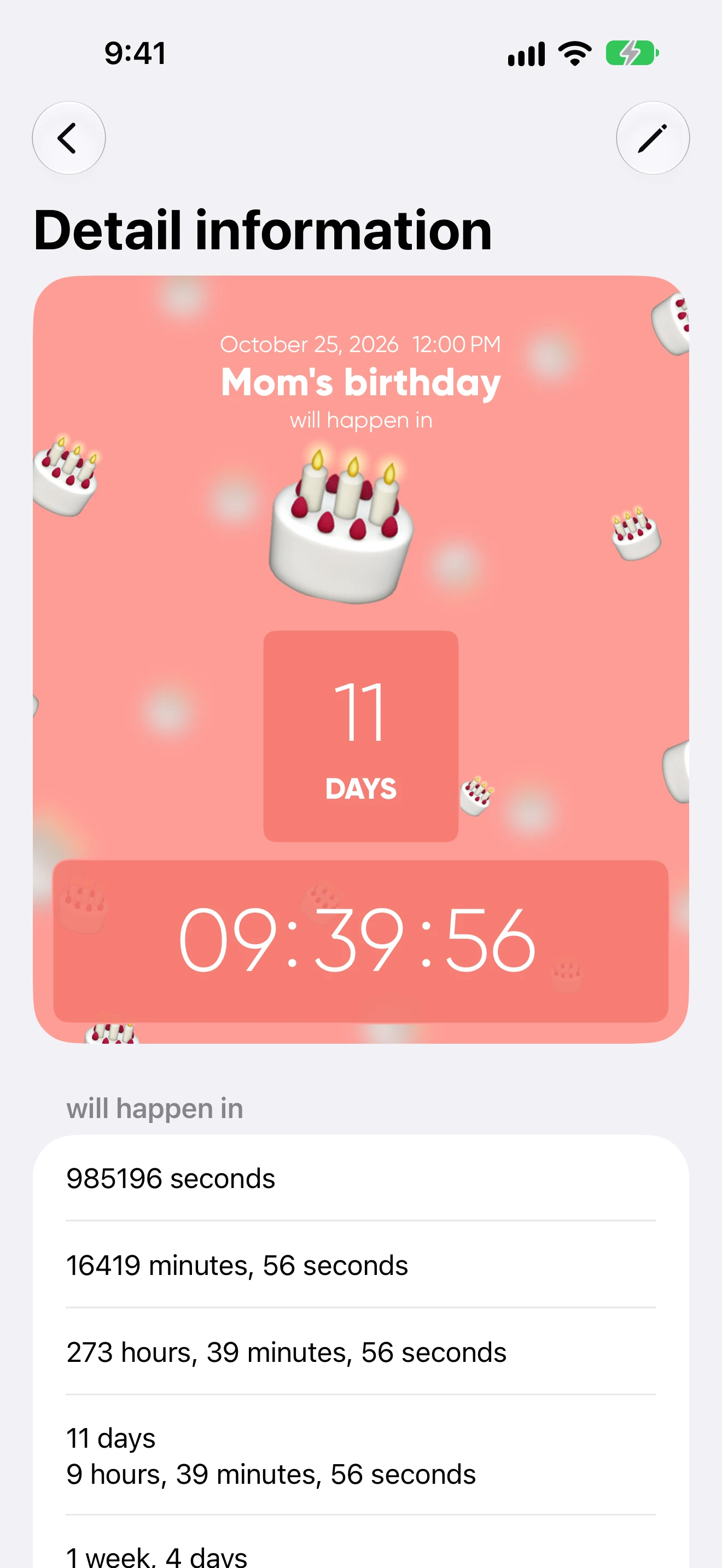
- Choose an icon or card appearance if you want, then tap Done. Open the saved event to check its date.
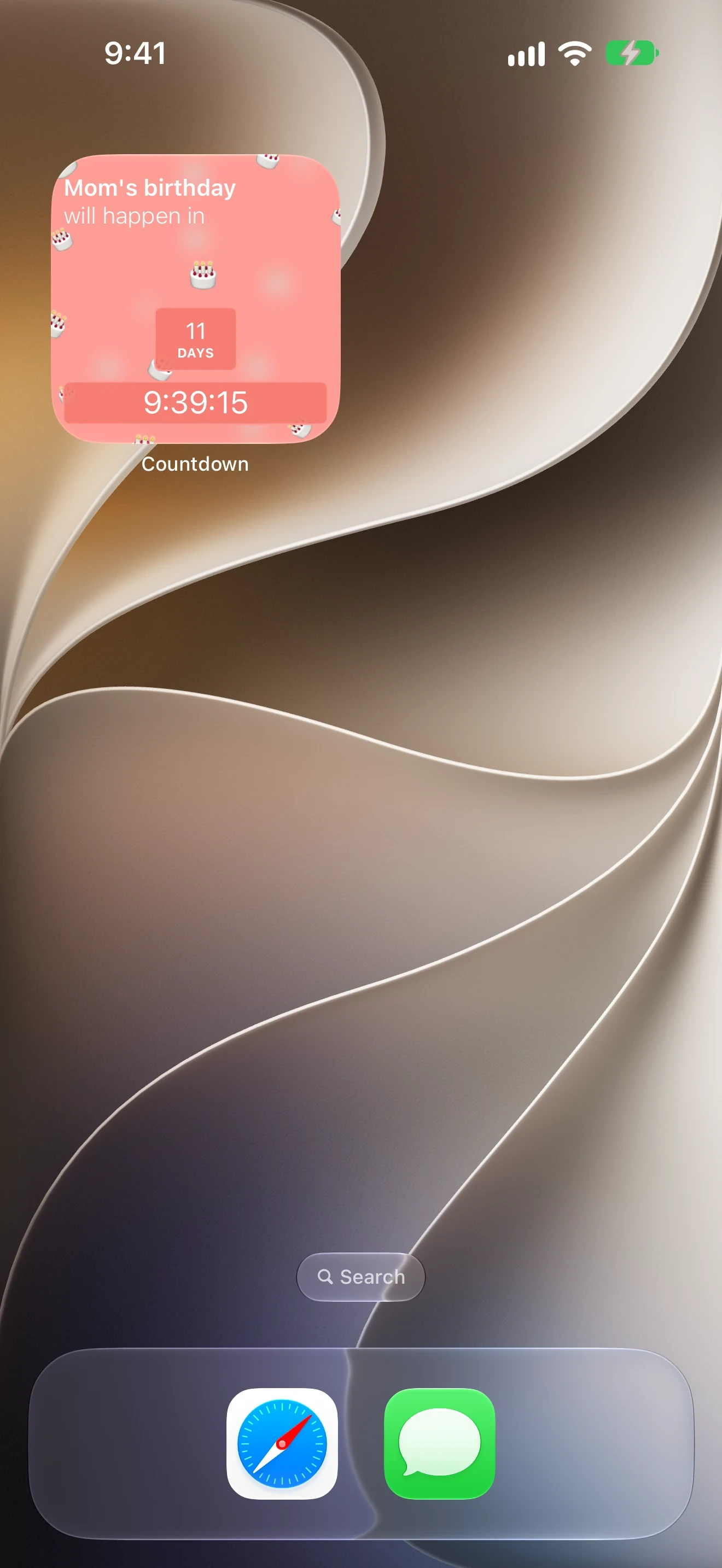
The screenshots use Mom's birthday on October 25, 2026, at noon. Replace that with your own date. For a count-up, such as time since a wedding, keep the original date in the past.
Find the widget in the iPhone gallery
- On the Home Screen, hold an empty area until editing controls appear.
- Open Edit at the top of the screen, then Add Widget.
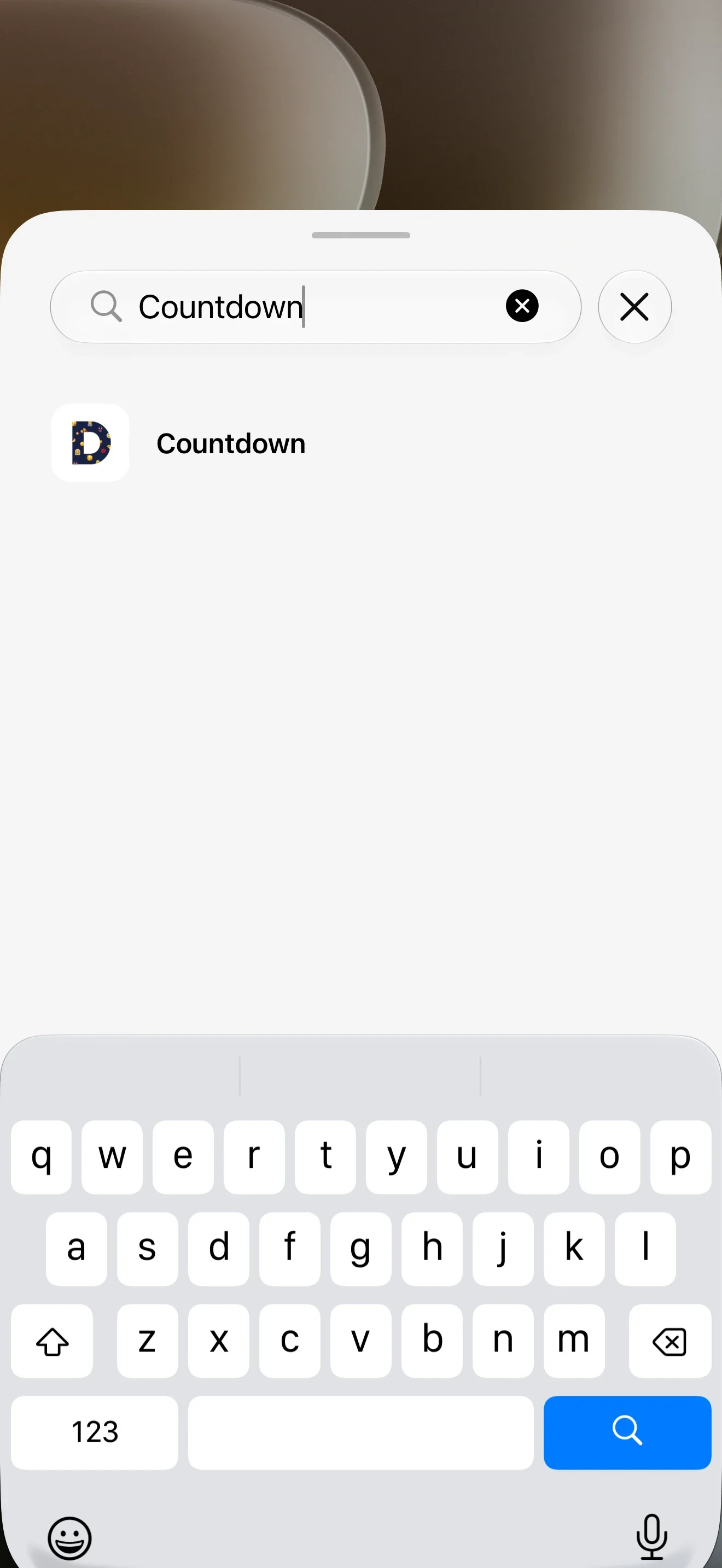
- Search for Countdown. That is the app's English Home Screen name. Tap the search result.
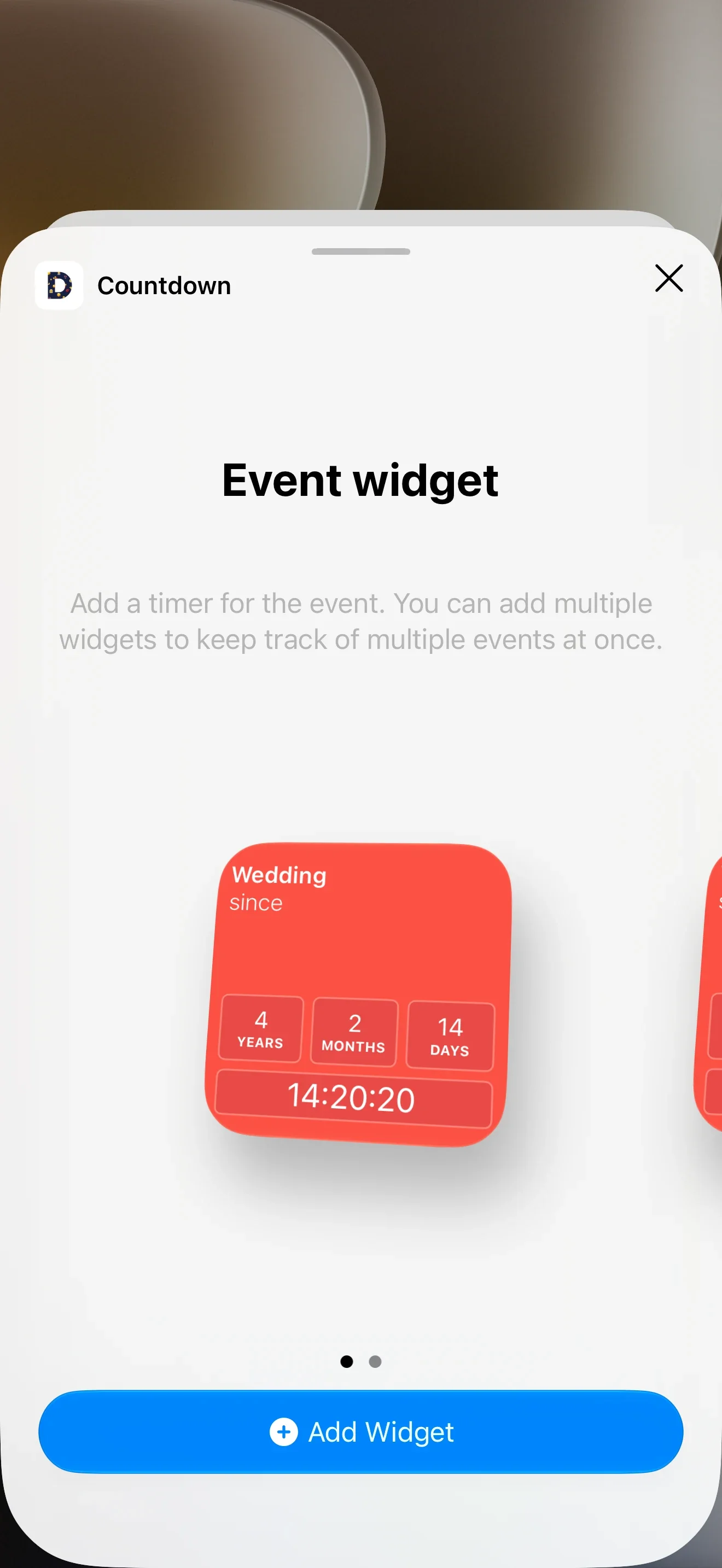
- Find Event widget and tap Add Widget. Place it where you want it, then finish with Done.
These are the system controls covered in Apple's guide to adding widgets. The screenshots show the iOS 27 interface.
Tell the widget which event to show
The gallery preview is not your final event selection. Here it shows Wedding. You can change that after placing the widget on the Home Screen.
- Hold the new widget and open Edit Widget.
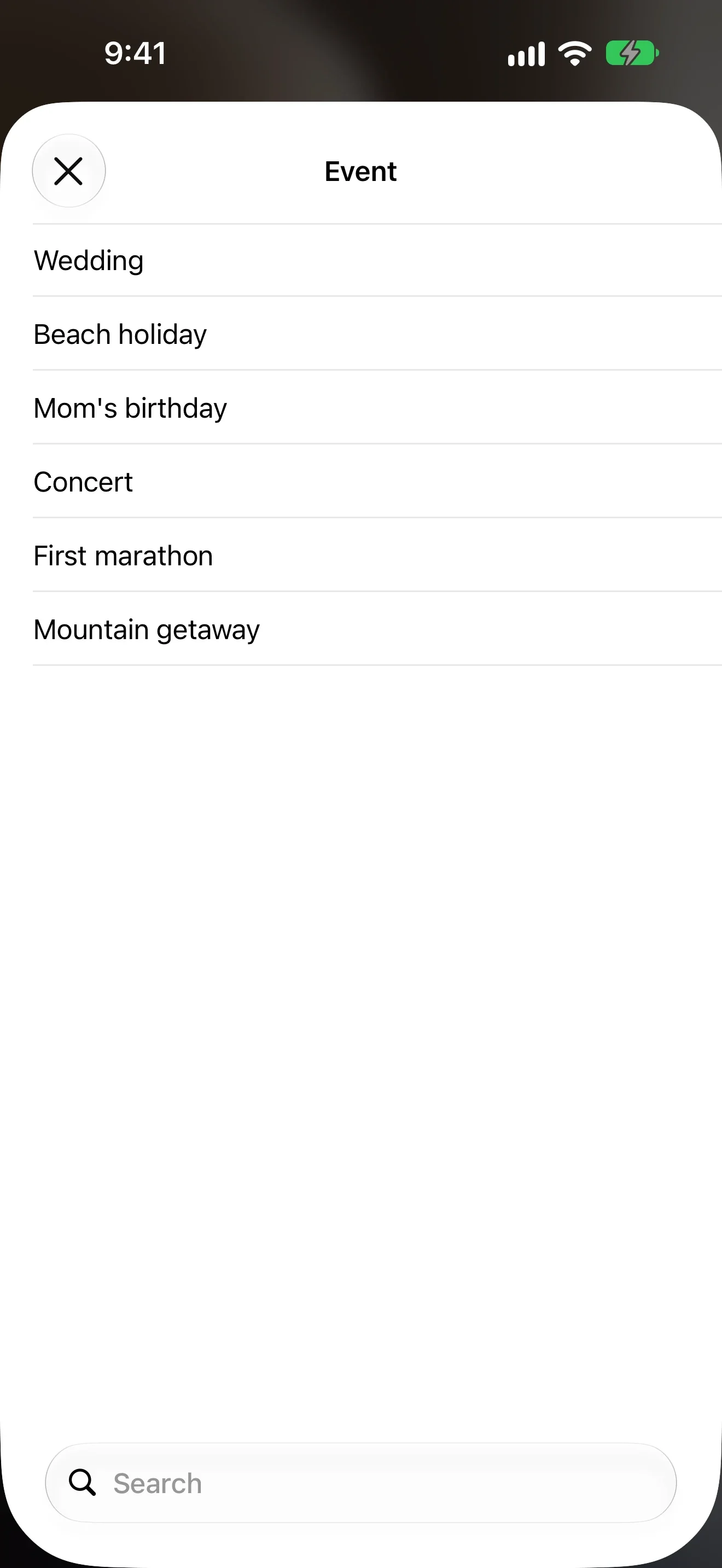
- Under Event, tap Choose and pick the date you saved. Select Mom's birthday to match this example.
- Tap outside the settings panel. Check the event name on the widget.
The countdown now belongs to the event you picked. Each widget has its own selection, so you can add another for your vacation without replacing the birthday countdown.
Put a countdown on the Lock Screen
Important Dates offers rectangular Lock Screen widgets on iOS 16.1 and later. You can choose an event or a folder, with background variants also available.
- Hold the Lock Screen to open its customization controls. Choose the Lock Screen if iOS asks which screen you want to edit.
- Open the widget area, find Countdown, and add a rectangular event widget to a free slot.
- While still editing, tap the widget you added and choose your saved event.
- Close the panels and save the changes. Remove an unwanted widget from that area if you need room.
Apple explains the wallpaper and widget controls in Create a custom iPhone Lock Screen. Set this widget up separately from the one on your Home Screen.
When to use a folder widget
An event widget keeps one specific date visible. A folder widget picks the next future event in that folder. If none are in the future, it shows the most recent past event. It displays one event at a time, rather than the whole folder list.
Choose Folder's events widget in the gallery if you want that selection to follow the next date in a group. For a particular birthday or departure, use Event widget instead.
Important Dates has a small square Home Screen widget. There are no medium or large Home Screen sizes in the current app. Lock Screen variants are rectangular. Changing the size of cards inside the app does not resize a widget.
Check these if the widget is missing or looks wrong
- No app in the widget search. Open the app, confirm your event is saved, then return to the gallery and search for Countdown.
- Wrong event. Open Edit Widget and choose the saved date explicitly. The gallery preview can show a different event.
- Time since an event instead of time until it. Check the year. An upcoming birthday needs a future date; the date of birth produces a count-up.
- Old countdown after an edit. Check that the new date is saved in the app and allow time for the widget to update. If it stays wrong, remove the widget, add it again, and choose the event again.
iOS schedules widget content updates, so an edited date may not appear immediately. Apple describes this in Keeping a widget up to date.
For a day total that differs from your own calculation, check the event time and whether you included the starting day. See how to count days between dates. If you need an appointment or a task rather than a visible interval, compare Calendar, Reminders, and a date counter.