
Choose an alert, a task, or a countdown
| What you need | Where to start |
|---|---|
| An alert for birthdays saved in Contacts | Show birthdays in Calendar and choose an alert time. |
| A prompt to order a gift or mail a card on a particular date | Create a dated task in Reminders. |
| A selected group of birthdays with saved counters and a widget | Import contacts into Important Dates. |
A birthday alert on November 8 will not help you mail a card on November 1. Give that task its own date in Reminders. You can keep the birthday itself in Calendar or a date counter.
Set up the built-in birthday alerts first
- Check that the person has a birthday saved in their Contacts card.
- Open Calendar, tap Calendars, select Birthdays, and tap Done.
- Go to Settings → Apps → Calendar → Default Alert Times → Birthdays. Pick one of the available alert options.
Apple documents showing birthdays from Contacts and default Calendar alerts. Also check that Calendar has notification permission in iPhone Settings. If these alerts cover your needs, you can use Calendar. The remaining steps are for a selected birthday list and widgets in Important Dates.
Import only the contacts you want to track
- On the empty Important Dates screen, tap From Contacts. If you already have events, open the app settings and choose the option to add birthdays from Contacts.
- Grant access to the contacts you want the app to read when iOS asks.
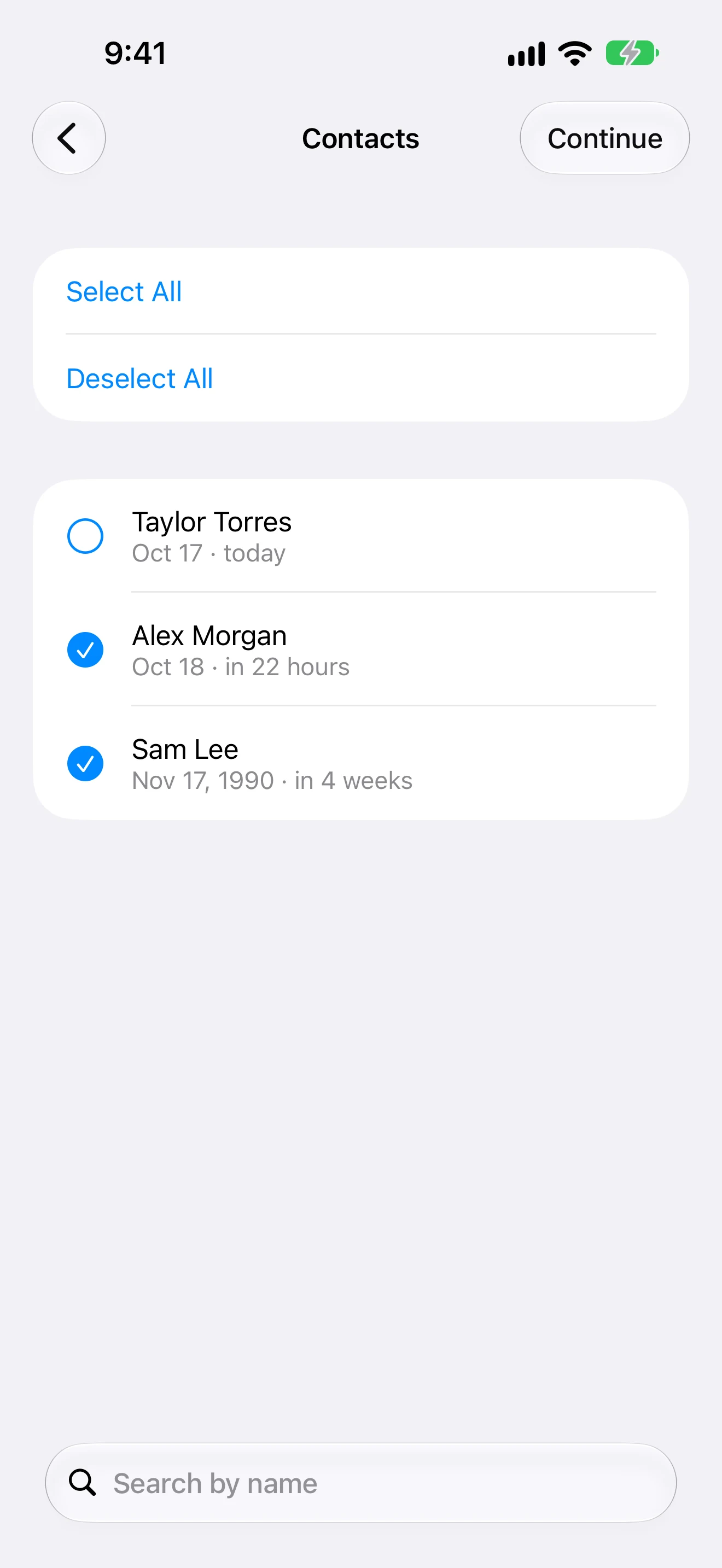
- Select people in the list, then tap Continue. Use Search by name to find a contact.
The list includes contacts with a name and a standard birthday. The screenshots use fictional contacts. Alex Morgan and Sam Lee are selected; Taylor Torres is left out.
If someone is missing, check their birthday in Contacts and the app's access. With Limited Access, iOS exposes only the people you allow. To change the selection, go to Settings → Privacy & Security → Contacts and choose Countdown, the app's English Home Screen name. Apple explains how to change Contacts access.
Keep the birthdays together and choose a time
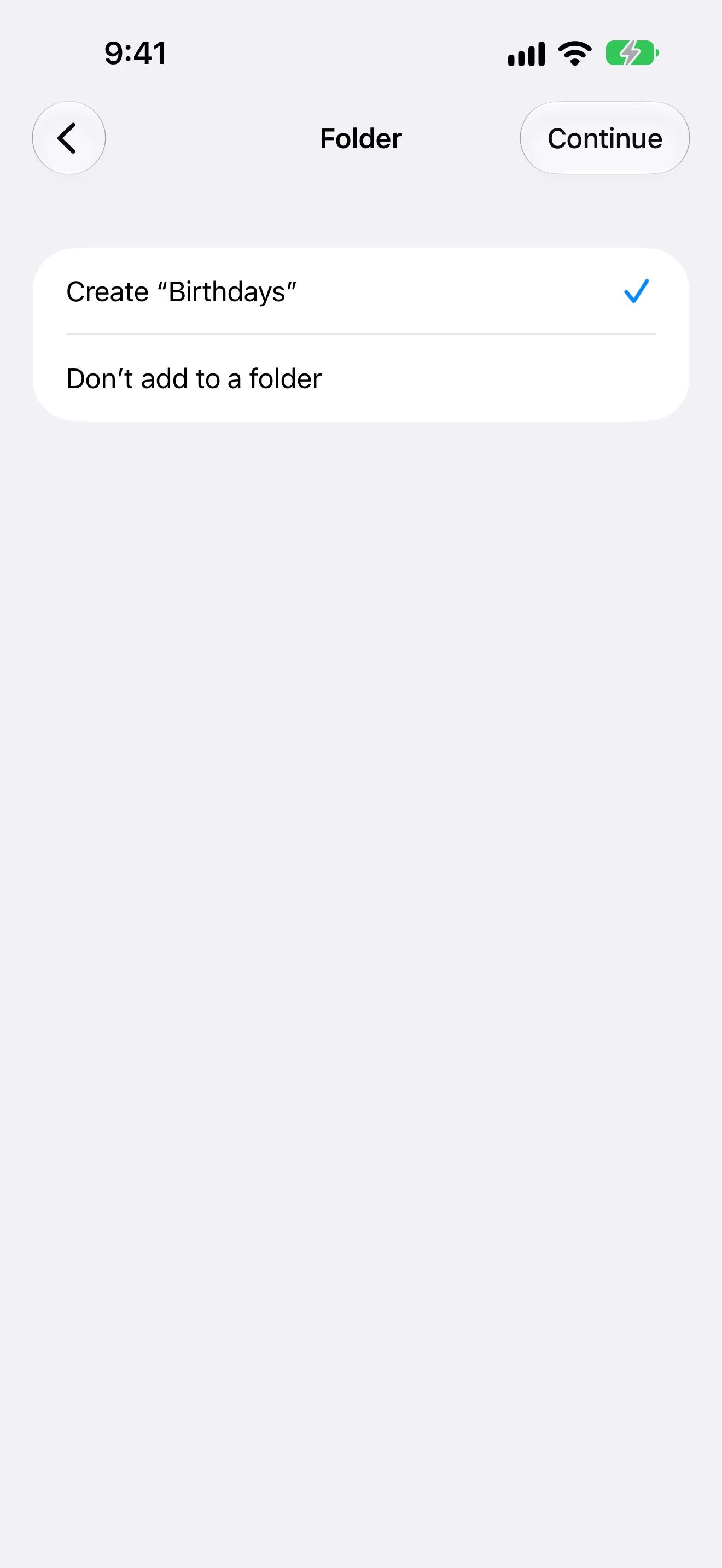
- Keep Create Birthdays selected to make a folder. You can also choose an existing folder, or import without one.
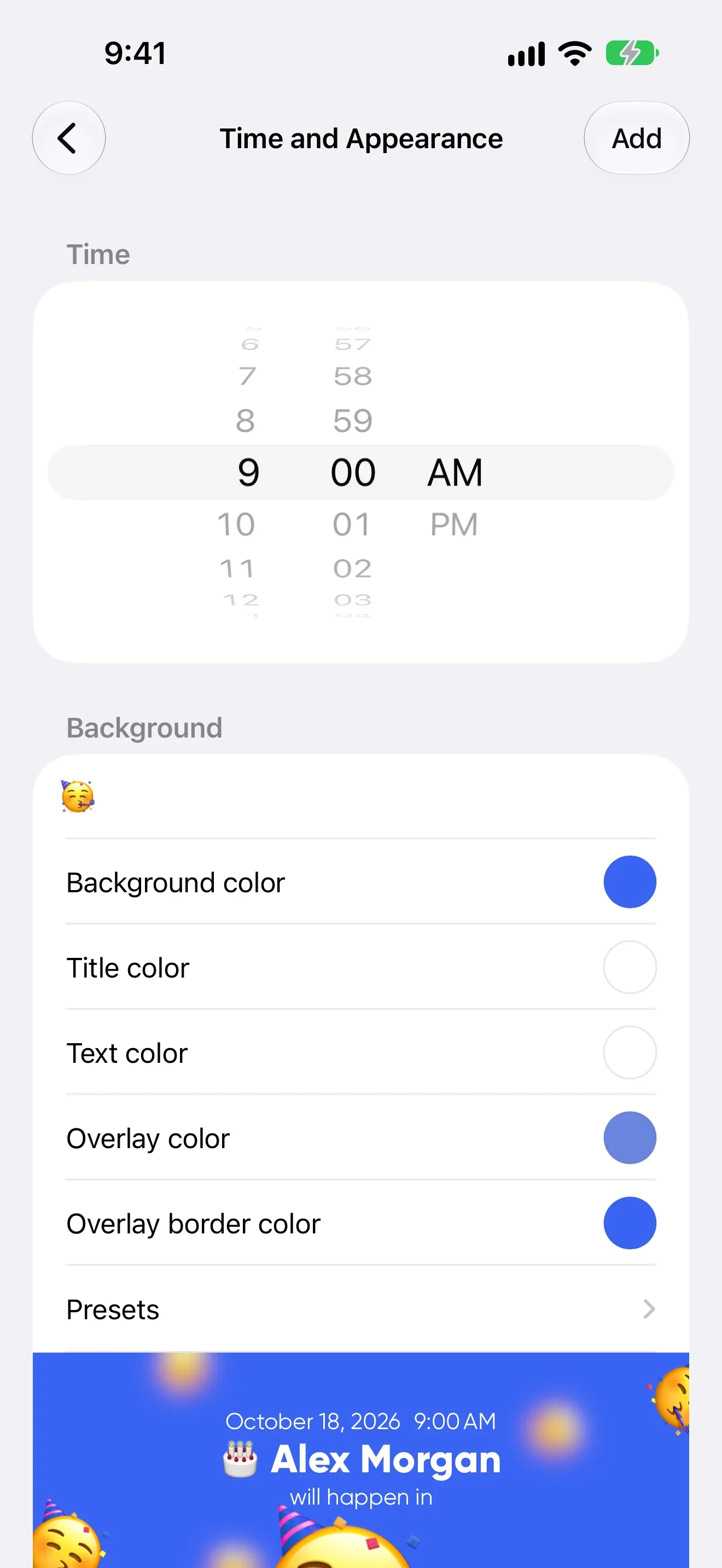
- Tap Continue. On Time and Appearance, choose the time for the saved events. The default is 9:00 AM. Any reminders you enable later use the event's saved time.
- Choose an appearance, then tap Add. The app opens the chosen folder after import.
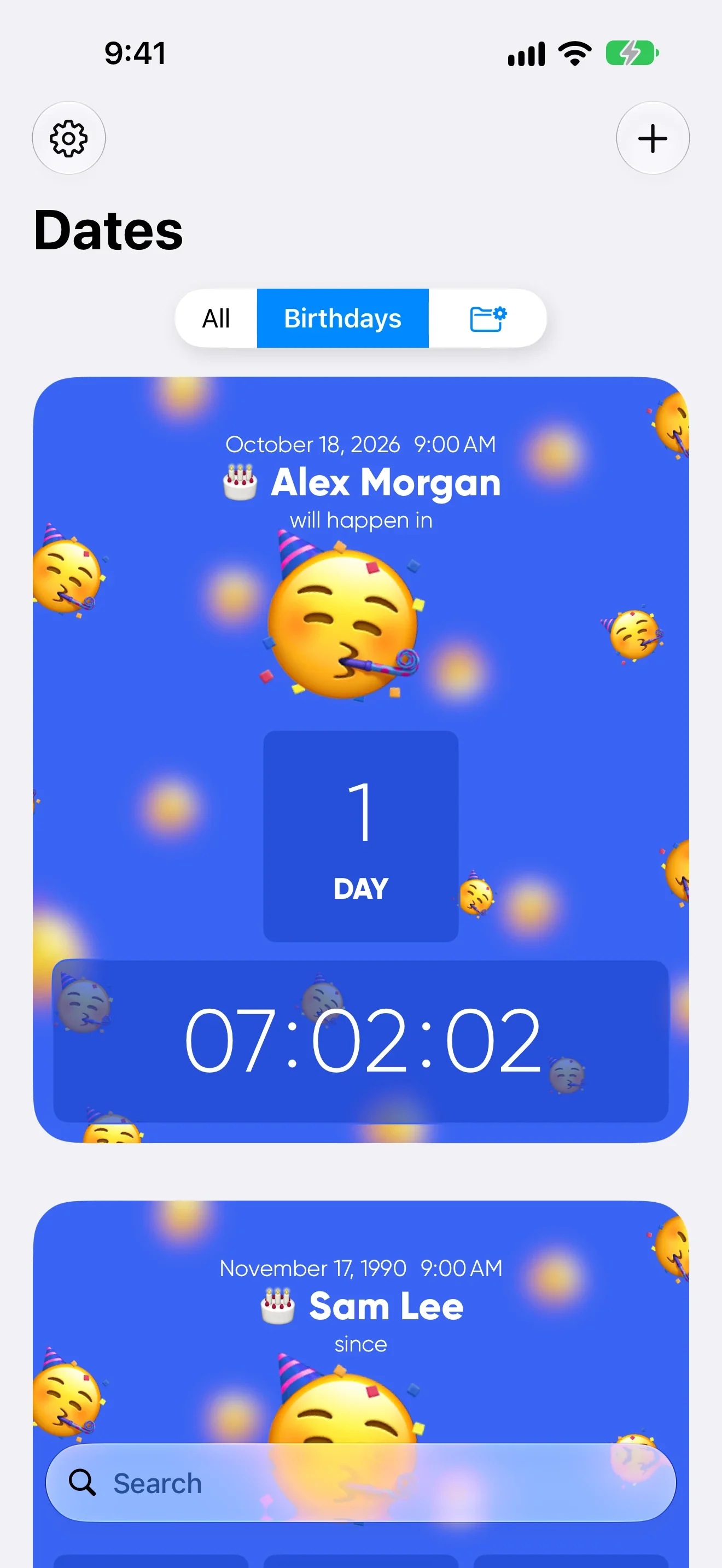
These are saved events. When you return to import, contacts linked to events still in the app are marked as already added. Editing a contact later does not automatically edit the imported event.
Check whether you saved a birth date or the next birthday
The year matters. Alex Morgan has no birth year in the example contact, so the import saves the next birthday, October 18, 2026. Sam Lee has a birth year, so the event keeps November 17, 1990. That card counts time since birth.
For a one-time check, use the online date countdown calculator. For a widget you will keep on your phone, confirm the date on the saved event card.
Turn on a yearly reminder for each event
- Open an imported event and tap the edit button.
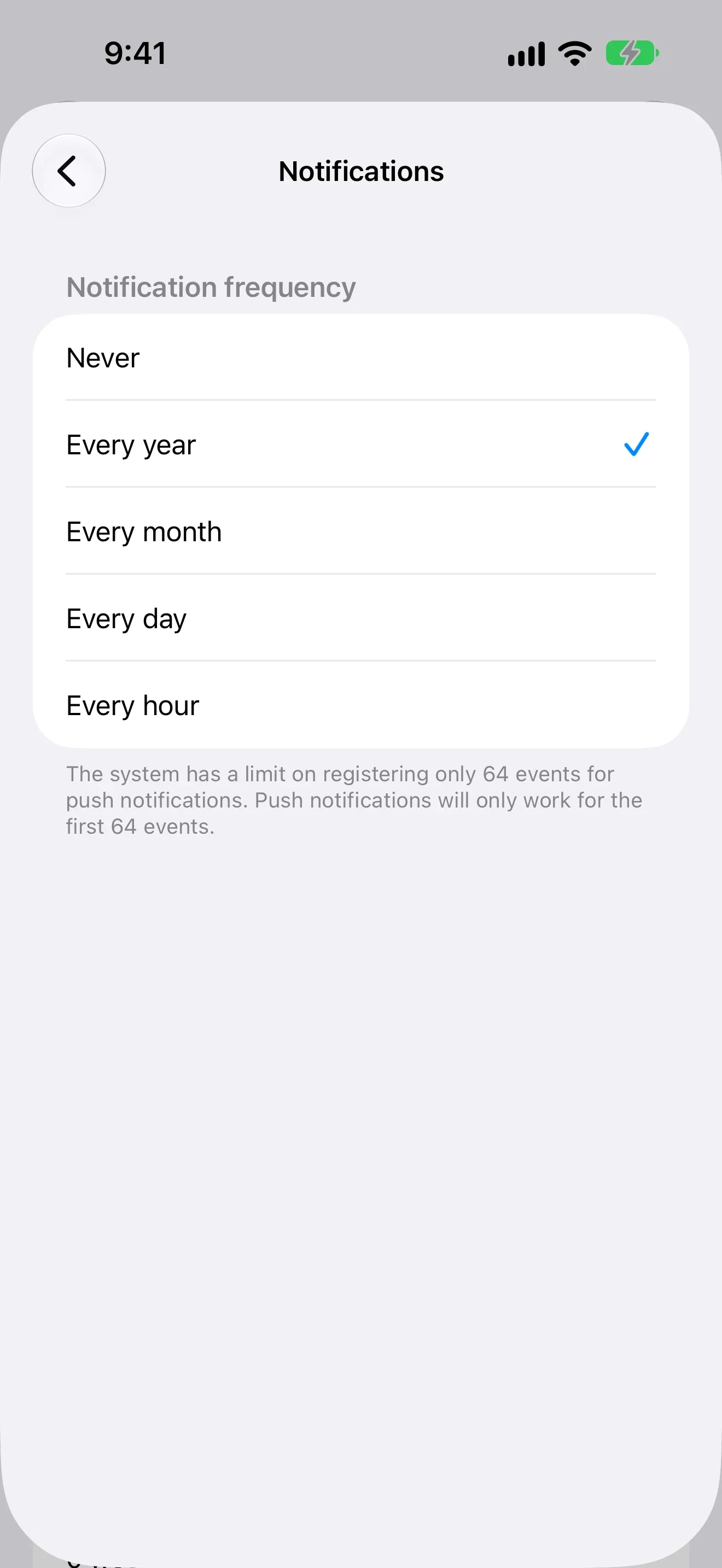
- Find Frequency under Notifications. Allow notifications when iOS asks for permission.
- Choose Every year. This uses the month, day, hour, and minute of the saved event.
- Go back to the form and tap Done to save. Repeat for the other events you want reminders for.
This reminder is for the birthday itself, at the saved time. To prepare a few days earlier, set a separate dated task in Reminders. Important Dates schedules notifications for up to 64 events at a time.
If an alert does not appear, check Settings → Notifications → Countdown. Focus and Scheduled Summary can delay delivery. Apple's notification settings guide covers permissions and delivery options.
Put a birthday countdown on your Home Screen
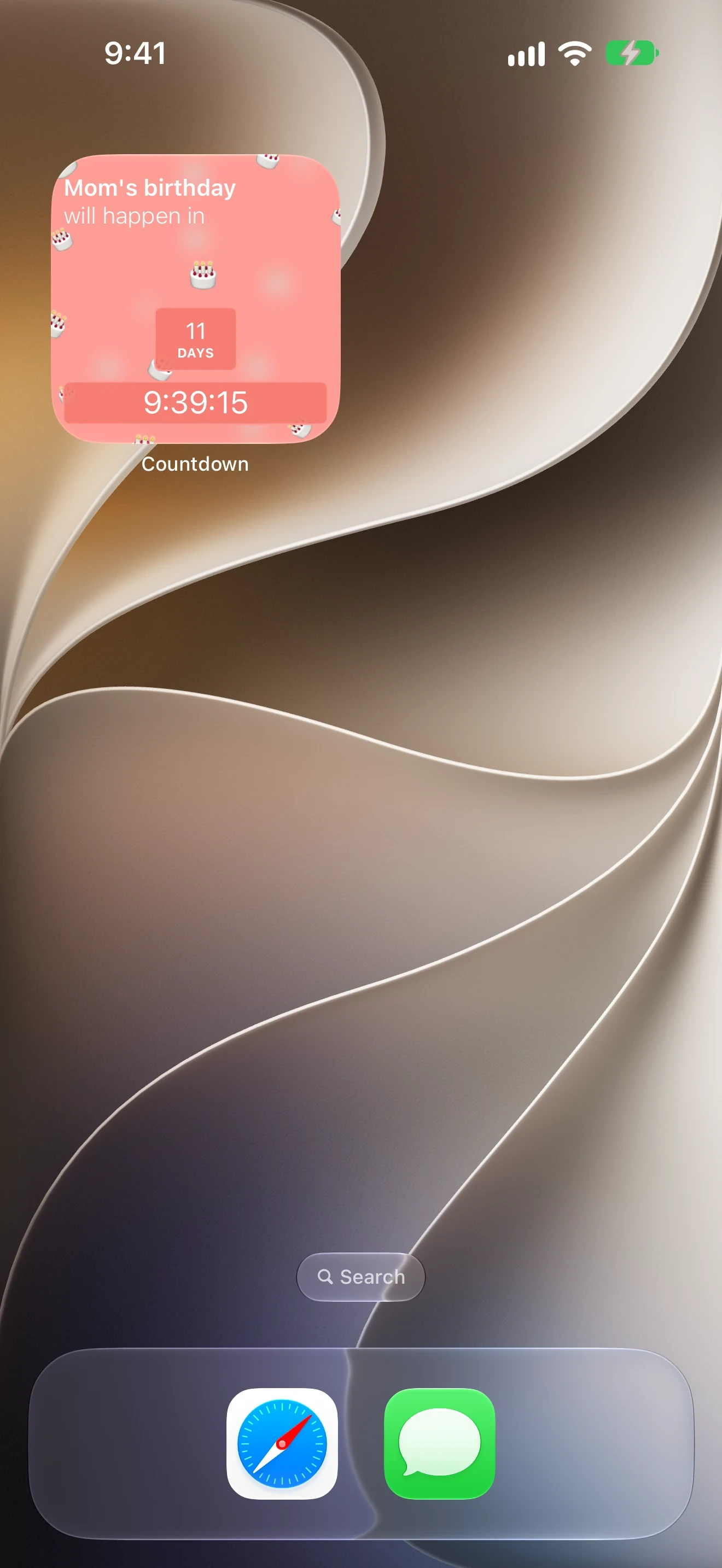
Choose Event widget for one saved birthday. Folder widget can display events from a folder. Check the saved dates before adding either widget.
- Touch and hold an empty area of the Home Screen, then tap Edit → Add Widget. Search for Countdown, the app's English Home Screen name.
- Add Event widget. Touch and hold it, tap Edit Widget, and choose the birthday event you want to display.
The separate example below uses Mom's birthday. For a folder widget, select a folder instead of an individual event. Follow the Important Dates widget guide for the full set of setup screens. Apple also documents the Home Screen widget controls.
Know what the import keeps
Birthday import reads the contact name, identifier, and standard birthday. Selected contacts become local events. The widgets use shared storage on the device to read those events. Important Dates does not automatically sync them through iCloud.
The app uses technical and product analytics, including the number of imported events. Address book contents, event names, and event dates are not sent to analytics. The Important Dates privacy policy explains the data handling.
If you use a Lock Screen widget, anyone who can see the screen may see its event title. Give a sensitive event a neutral name. Hiding notification previews does not hide a widget's contents.