
Get a day count before setting up a widget
Use the time-since-date calculator for a quick check. Enter a past date and time. The status changes to "Time passed since the event", and the days row gives a day total. The years and months row describes the same interval in calendar units.
For example, June 3 at 9:00 AM to June 10 at 9:00 AM is 7 days. You might call June 3 "day one" of a new job, which makes June 10 "day eight". That label counts the starting day; it does not change the elapsed interval.
This calculator runs up to the current moment using your browser's local time. To stop at a particular date instead, use the date-difference calculator. You can copy a link to return to your chosen dates.
Save the date when it actually happened
- Open Important Dates and tap the add-event button on the main list.
- Name the event, then enter its original date and time. Keep the original year for a wedding, a move, or the first day of a project.
- Choose an icon or card appearance if you want, then tap Done. Open the saved event.
A date in the past produces a count-up automatically, with "since" under the event name. There is no separate count-up mode to switch on. You can use the same approach for time since a move, a camera purchase, or a project launch.
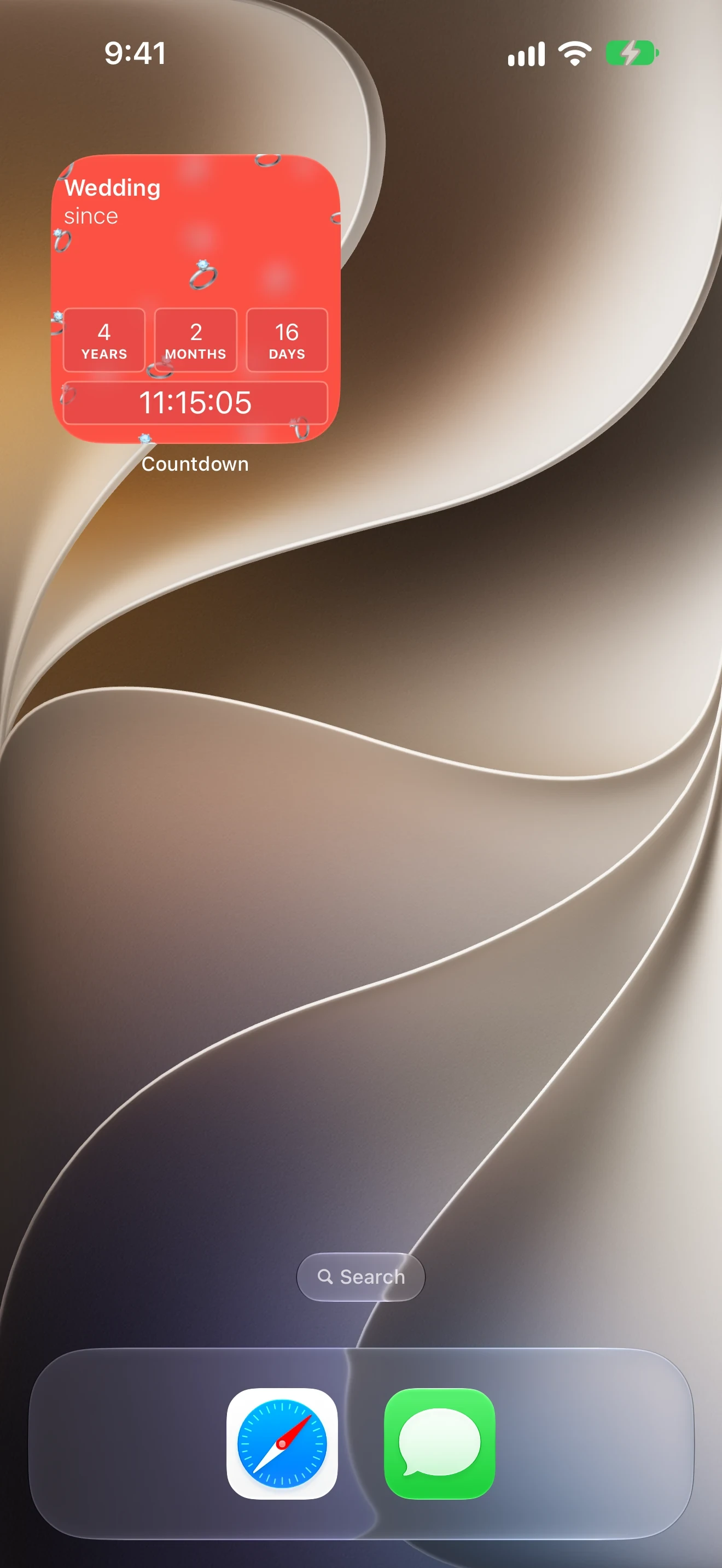
The screenshots follow a wedding saved as August 2, 2022, at noon. They were captured on October 18, 2026. Your numbers will reflect your event date and the time you view it.
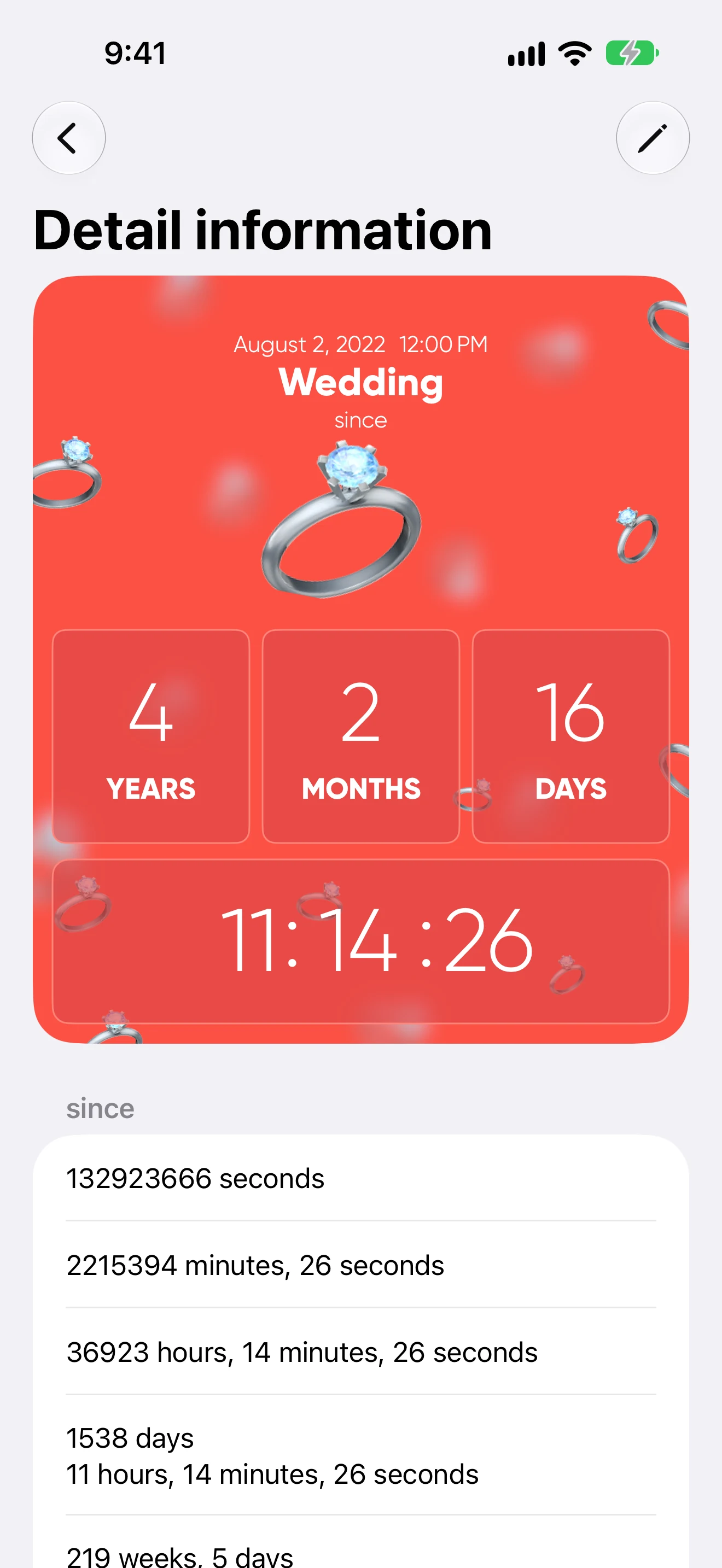
Find total days in the event details
Below the card, the event details show the interval in several formats. In the screenshot, "1538 days" is the day total. The "16 days" on the card is the remainder after whole calendar years and months.
| Where to look | What it shows |
|---|---|
| Event card | Calendar years, months, remaining days, and time. |
| Days and time row | Total days since the event, followed by hours, minutes, and seconds. |
| Weeks row | Whole weeks, remaining days, and time. |
| Months row | Calendar months, remaining days, and time. |
| Seconds, minutes, and hours rows | The same interval expressed in smaller units. |
Scroll down the details screen to see the remaining rows. Months are calendar months, so treating each one as 30 days will give you a different result.
Add a count-up widget to your Home Screen
- Hold an empty area of the Home Screen until the editing controls appear.
- Tap Edit, then Add Widget.
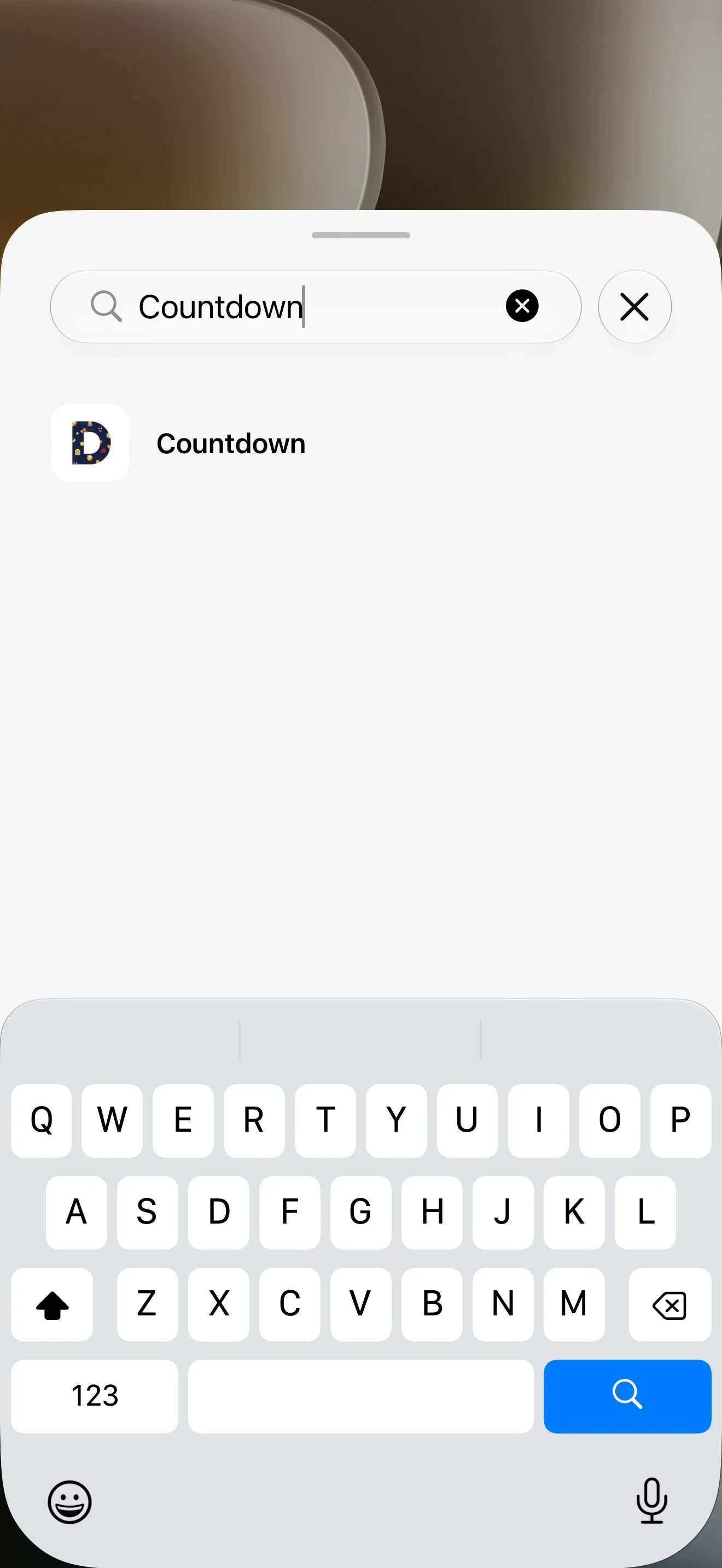
- Search for Countdown, the app's English Home Screen name. Open its search result.
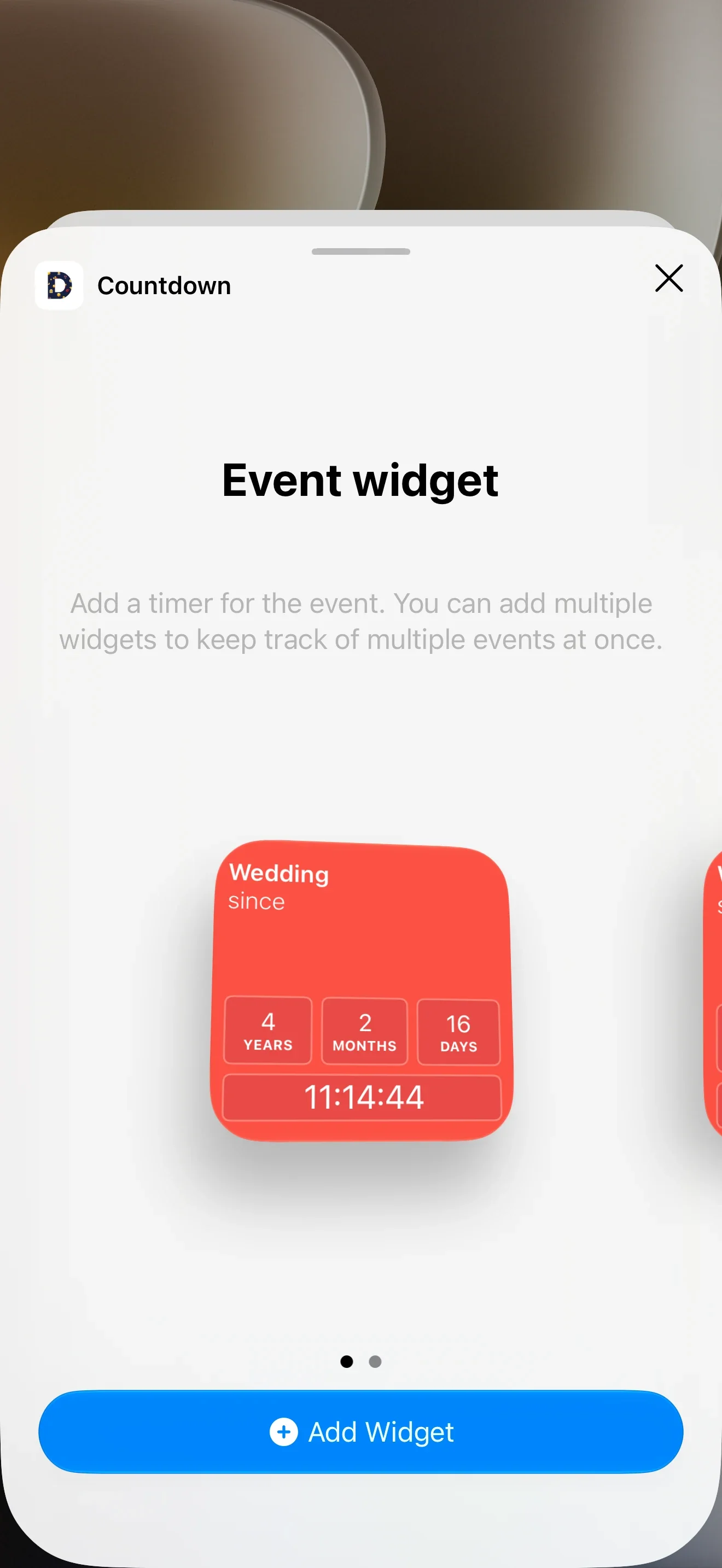
- Choose Event widget, tap Add Widget, then finish placing it with Done.
These are the system controls covered in Apple's guide to adding and editing iPhone widgets. The screenshots show iOS 27.
Point the widget at your saved event
Choose the event after adding the widget. The preview in the gallery can show a different saved date, so check the selection even if the preview looks right.
- Hold the widget and tap Edit Widget.
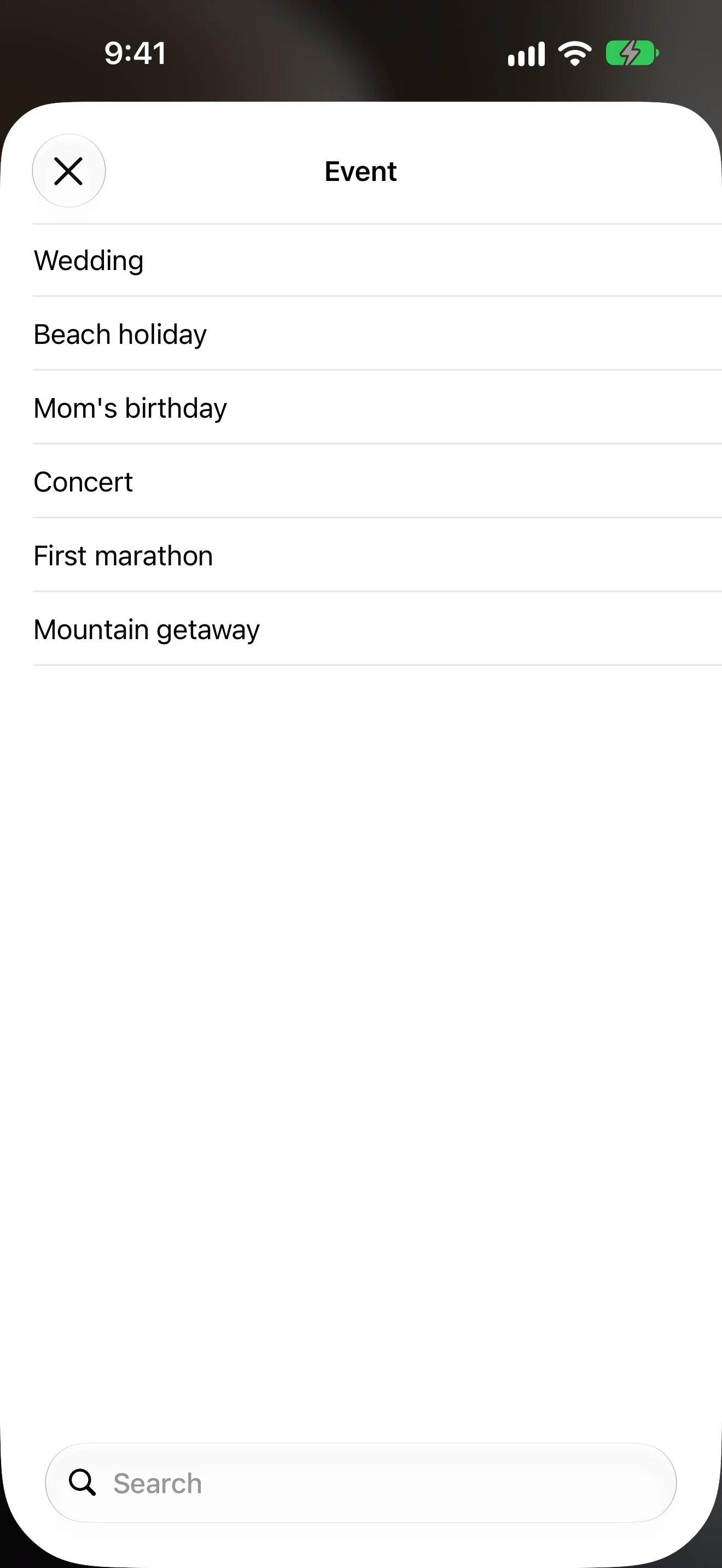
- Under Event, tap Choose. Select your saved past event. Pick Wedding to follow the example.
- Tap outside the settings panel, then check the event name on the widget.
Use Event widget to keep one particular date visible. A folder widget selects the next future event in that folder, or the most recent past event if none are in the future. Adding a wedding to a folder does not guarantee that the folder widget will keep showing it.
Check these when the count looks wrong
- Original year. Moving a past event into next year changes the widget to a countdown.
- Event time. An event saved at 6:00 PM reaches its next day relative to that time, rather than just at midnight.
- Matching formats. A day remainder after years and months is different from a total day count.
- Starting-day convention. The current numbered day of a project can be one higher than the number of elapsed days.
For the counting rule and calendar-day examples, see how to count days between dates. Compare the same date, time, and time zone. A calendar day around a daylight saving change is not always exactly 24 hours.
If an edited date has not appeared on the widget, check the saved event and its selection in Edit Widget. iOS controls widget content refreshes, as explained in Apple's widget update documentation. If the old value stays there, try removing the widget and adding it again.
Put a past event on the Lock Screen
Important Dates also has rectangular Lock Screen widgets on iOS 16.1 and later. Follow the iPhone widget setup guide for those steps. Select the saved event separately for each widget.
People who can see your locked phone may be able to read the event name and elapsed time. Use a neutral title for a personal date, or keep it inside the app.